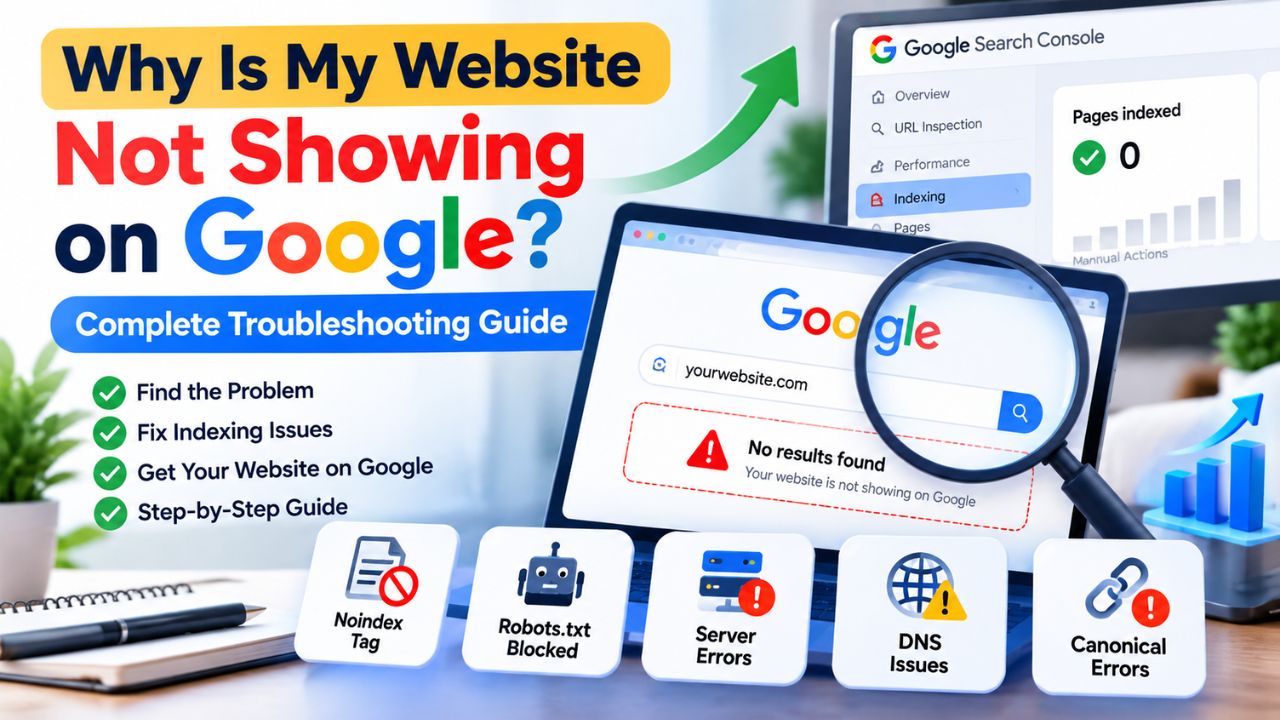
Why Is My Website Not Showing on Google? Complete Troubleshooting Guide
You launched your website. You waited. You searched for your business name on Google. Nothing. Or worse, you searched for your main service and found competitors but not yourself. It feels like your website does not exist. This is one of the most frustrating experiences for any business owner, especially when you have invested time and money into building a professional site.
The truth is that Google does not automatically index every website. It needs to discover, crawl, and rank your pages. If any step in that process fails, your site will not appear in search results. The good news is that the causes are usually technical and fixable. Most websites that are not showing on Google are suffering from one of a handful of common issues: a noindex tag, a blocked robots.txt file, a manual penalty, poor content, or simply being too new.
This complete troubleshooting guide will walk you through every possible reason your website is not appearing on Google, how to diagnose each one step by step, and how to fix it. You will learn what to check first, what tools to use, and when to call a professional. By the end, you will have a clear action plan to get your website indexed and visible.
Quick Answer
Your website is not showing on Google because Google has either not discovered it, not indexed it, or deliberately excluded it. The most common causes are: a noindex meta tag or HTTP header, a robots.txt file blocking Googlebot, a manual action or penalty, poor content quality, a new domain with no backlinks, server errors, DNS issues, or canonical tag errors. To diagnose, start by searching site:yourdomain.com on Google. If no results appear, check Google Search Console for coverage errors. Fix the specific blocking issue, then request indexing.
Table of Contents
How Google Indexes Websites
Before you can fix the problem, you need to understand how Google works. Google uses automated programs called crawlers (Googlebot) to discover web pages. The process has three main stages: crawling, indexing, and ranking.
Crawling: Googlebot finds URLs. It discovers them through links from other websites, XML sitemaps, or manual submissions. If Googlebot cannot access your site due to a robots.txt block or server error, it will never crawl your pages.
Indexing: Once crawled, Google analyses the content and stores it in a massive database called the index. If a page has a noindex tag or is considered low quality, Google may choose not to index it. If a page is indexed, it becomes eligible to appear in search results.
Ranking: When someone searches, Google retrieves indexed pages that match the query and orders them by relevance and authority. Even if your page is indexed, it may not rank well if it lacks quality content, backlinks, or technical optimization.
If your website is not showing on Google at all, the problem is almost always in the first two stages: crawling or indexing. Ranking issues come later, after your site is already in the index.
Why Your Website Is Not Showing on Google
1. Your Website Has a Noindex Tag
What the problem is: A noindex meta tag or HTTP header tells Google not to index a page. If this tag is present on your homepage or all pages, Google will crawl your site but will not include it in search results. It is like putting a "do not enter" sign on your store.
Why it happens: Noindex tags are often added by accident during development. A developer might add noindex to a staging site and forget to remove it when going live. Or a plugin might add noindex by default to certain page types. Sometimes a security plugin adds noindex to the entire site if it detects suspicious activity.
How to identify it: Open your website in a browser. Right-click and select "View Page Source." Search for "noindex" in the HTML. You can also use a tool like the SEO Minion Chrome extension or check the URL in Google Search Console's URL Inspection tool, which will tell you if the page is blocked by noindex.
Why it affects the business: If your entire site has a noindex tag, it will never appear in Google search results. You will get zero organic traffic. This is one of the most common and most damaging mistakes.
Practical solution: Remove the noindex tag from your live site. If you are using WordPress, check your SEO plugin settings (Yoast, Rank Math, etc.) and ensure that the "Search engine visibility" setting is not set to "Discourage search engines from indexing this site." Also check individual page settings to ensure noindex is not enabled.
2. Your robots.txt File Is Blocking Googlebot
What the problem is: The robots.txt file is a text file in your website's root directory that tells search engine crawlers which parts of your site they can or cannot access. If it blocks Googlebot from crawling your entire site, Google will not index any pages.
Why it happens: Robots.txt blocks are often added intentionally during development to keep staging sites out of search results. If the file is copied to the live site without being updated, Googlebot will be blocked. Sometimes a misconfigured security plugin or firewall also blocks Googlebot.
How to identify it: Open your browser and go to yourdomain.com/robots.txt. Look for lines like Disallow: / which block all crawling. If you see that, Googlebot is blocked. You can also use Google Search Console's robots.txt tester to see if Googlebot is blocked from specific URLs.
Why it affects the business: If Googlebot cannot crawl your site, your pages will never be indexed. Your website will be invisible on Google, even if it has excellent content.
Practical solution: Edit your robots.txt file to allow Googlebot to crawl your site. Remove any Disallow: / lines that block the entire site. If you need to block specific folders (like admin areas), use specific disallow rules. After fixing, submit your sitemap to Google Search Console and request indexing.
3. Your Website Has a Manual Action or Penalty
What the problem is: Google can manually penalize a website for violating its spam policies. If your site has a manual action, it may be completely removed from search results or ranked very low. This is a serious issue that requires immediate attention.
Why it happens: Manual actions are usually the result of black-hat SEO tactics: buying links, keyword stuffing, cloaking, hiding text, or hosting malicious content. Sometimes a site is hacked and Google issues a penalty for the injected spam.
How to identify it: Log in to Google Search Console. Look for a "Manual Actions" section in the left sidebar. If there is a manual action, it will be listed with details about the violation and what you need to fix.
Why it affects the business: A manual action can remove your site from Google entirely, resulting in zero organic traffic. It can also damage your brand's reputation if users see a warning in search results.
Practical solution: Read the manual action report carefully. Fix the violation by removing spammy content, disavowing bad backlinks, or cleaning up hacked files. Then submit a reconsideration request through Search Console. Be honest and thorough. It may take several weeks for Google to review your request.
4. Your Website Is New and Has Not Been Indexed Yet
What the problem is: New websites are not automatically indexed. Google needs time to discover and crawl your pages. For a brand-new domain with no backlinks, it can take days, weeks, or even months for Google to index your site.
Why it happens: Google's crawlers prioritize established, authoritative sites. A new site with no inbound links is not a high priority. Google may also be cautious about indexing new sites because many are low-quality or spammy.
How to identify it: Search for site:yourdomain.com on Google. If no results appear, your site is not indexed. Check Google Search Console's "Coverage" report. If it says "Discovered - currently not indexed" or "Crawled - currently not indexed," Google knows about your site but has not indexed it yet.
Why it affects the business: Until your site is indexed, it will not appear in search results. You will not get any organic traffic. This is a waiting game, but you can speed it up.
Practical solution: Submit your XML sitemap to Google Search Console. Use the URL Inspection tool to request indexing for your most important pages. Build a few high-quality backlinks from reputable sites to signal that your site is worth crawling. Publish new content regularly to show Google that your site is active.
5. Your Content Is Thin, Duplicate, or Low Quality
What the problem is: Google aims to index high-quality, useful content. If your pages have very little text, duplicate content from other sites, or content that does not answer user queries, Google may choose not to index them. This is called "quality filtering."
Why it happens: Many business websites have pages with just a few sentences of text, especially service pages or "about us" pages. If multiple pages on your site have the same or similar content, Google may see it as duplicate and index only one version. If your content is copied from another site, Google will likely ignore it.
How to identify it: In Google Search Console, check the "Coverage" report for pages marked as "Duplicate, submitted URL not selected" or "Soft 404." Use a tool like Copyscape to check for duplicate content. Read your pages and ask: does this page provide unique value? Would a user find this helpful?
Why it affects the business: If Google does not index your pages, they will not appear in search results. You are missing out on potential traffic and leads.
Practical solution: Improve your content. Add more depth, unique insights, and useful information. Remove or consolidate duplicate pages. Use canonical tags to tell Google which version of a page is preferred. Write for humans first, but ensure your content is comprehensive enough to satisfy search intent.
6. Your Website Has Server Errors or Is Unreachable
What the problem is: If Googlebot cannot access your website due to server errors (like 500 internal server errors), downtime, or DNS issues, it cannot crawl or index your pages. Persistent server errors can also cause Google to remove already indexed pages.
Why it happens: Server errors can be caused by misconfigured servers, faulty plugins, exhausted resources, or hosting outages. DNS issues can occur if your domain name servers are not set up correctly or if your domain has expired.
How to identify it: Try to access your website from different devices and networks. If you see error messages, your site is down. Check Google Search Console's "Crawl Stats" report for server errors. Use a tool like Down For Everyone Or Just Me to confirm.
Why it affects the business: If Google cannot access your site, it cannot index it. If the errors persist, Google may drop your pages from the index entirely. This results in lost traffic and lost revenue.
Practical solution: Fix the server errors. Contact your hosting provider if necessary. Ensure your domain is renewed and DNS records are correct. Set up uptime monitoring to alert you when your site goes down. After fixing, request indexing in Google Search Console.
7. Your Website Has Canonical Tag Errors
What the problem is: The canonical tag tells Google which version of a page is the "master" copy. If your canonical tags are incorrect, Google may index a different URL than the one you want, or it may not index any version at all.
Why it happens: Canonical errors often occur when a website is accessible via multiple URLs (e.g., with and without "www", with HTTP and HTTPS). If the canonical tag points to a non-existent page or a page that is blocked, Google may get confused.
How to identify it: Use Google Search Console's URL Inspection tool to see which canonical URL Google has selected. Check your page source for the canonical tag. Ensure it points to the correct, preferred version of the page.
Why it affects the business: Incorrect canonicals can prevent your pages from being indexed or cause the wrong page to appear in search results. This dilutes your SEO efforts.
Practical solution: Audit your canonical tags. Ensure each page has a self-referencing canonical tag that points to the preferred URL. Use 301 redirects to consolidate duplicate URLs. Set your preferred domain in Google Search Console.
8. Your Website Is Blocked by a Firewall or Security Plugin
What the problem is: Some security plugins or firewalls block legitimate bots, including Googlebot. If Googlebot is blocked, your site will not be crawled or indexed.
Why it happens: Security plugins often have aggressive settings that block suspicious traffic. If they misidentify Googlebot as a threat, they will block it. Some hosting providers also have firewalls that block bots.
How to identify it: Use Google Search Console's URL Inspection tool to see if Googlebot can access your pages. Check your security plugin logs for blocked IPs. Google publishes a list of IP ranges used by Googlebot; you can whitelist these in your firewall.
Why it affects the business: If Googlebot is blocked, your site will not be indexed. You will not appear in search results.
Practical solution: Configure your firewall or security plugin to allow Googlebot. Whitelist Google's IP ranges. If you are unsure, temporarily disable the security plugin and see if indexing resumes. Then re-enable it with proper exceptions.
9. Your Website Has No Backlinks
What the problem is: Backlinks are links from other websites to yours. They act as votes of confidence. Google uses backlinks to discover new sites and to judge authority. If your site has zero backlinks, Google may not discover it quickly, and it may not rank well even if it is indexed.
Why it happens: New websites naturally have no backlinks. If you have not actively built any, your site may remain undiscovered for a long time.
How to identify it: Use a tool like Google Search Console's "Links" report or a third-party tool like Ahrefs or Moz to check your backlink profile. If you have zero or very few backlinks, this is a problem.
Why it affects the business: Without backlinks, Google may not discover your site, and even if it does, your pages may not rank competitively. Backlinks are one of the strongest ranking signals.
Practical solution: Build high-quality backlinks. Get listed in relevant local directories. Create valuable content that others want to link to. Reach out to industry partners or suppliers for links. Avoid buying links or using link schemes, as this can result in a penalty.
10. Your Website Has a Domain or DNS Issue
What the problem is: If your domain has expired or your DNS records are misconfigured, your website will be unreachable. Google cannot index a site it cannot access.
Why it happens: Domain expiry is a common oversight. DNS misconfigurations can happen during hosting migrations or when changing domain registrars.
How to identify it: Try to access your website. If it does not load, check your domain registration status. Use a DNS lookup tool to verify that your A records and CNAME records are correct.
Why it affects the business: If your site is unreachable, it will not be indexed. If it was previously indexed, Google may remove it from the index.
Practical solution: Renew your domain if it has expired. Correct your DNS records. Contact your hosting provider or domain registrar for assistance. Set up auto-renewal for your domain to prevent future expiry.
How to Diagnose the Problem Step by Step
Now that you understand the possible causes, here is a practical process for identifying why your website is not showing on Google.
Step 1: Check if Your Site Is Indexed
Go to Google and search for site:yourdomain.com. If results appear, your site is indexed, and the problem is ranking, not indexing. If no results appear, your site is not indexed. This is your starting point.
Step 2: Check Google Search Console
Log in to Google Search Console. If you have not set it up yet, do so immediately. Go to the "Coverage" or "Pages" report. Look for errors like "Discovered - currently not indexed," "Crawled - currently not indexed," or "Blocked by robots.txt." These will tell you why Google is not indexing your pages.
Step 3: Check for Noindex Tags
Open your website and view the page source. Search for "noindex." If you find it, that is your problem. Remove the tag and request indexing.
Step 4: Check Your robots.txt File
Go to yourdomain.com/robots.txt. Look for any lines that block Googlebot from crawling your entire site. If you see Disallow: /, remove it.
Step 5: Check for Manual Actions
In Google Search Console, look for the "Manual Actions" section. If there is a manual action, read the details and fix the violation.
Step 6: Check Your Server and DNS
Try to access your website from different devices and networks. If it does not load, check your domain registration and DNS settings. Contact your hosting provider if needed.
Step 7: Check Your Content Quality
Review your pages. Are they thin, duplicate, or low quality? If so, improve them. Google is less likely to index pages that do not provide value.
How to Fix the Problem
Once you have identified the specific issue, here is how to fix it.
Fix Indexing Blocks
What to change: Remove noindex tags and unblock robots.txt.
Why it works: Google cannot index pages it is told not to index or crawl.
How to implement it: Edit your site's HTML or use your SEO plugin to remove noindex. Edit robots.txt to allow crawling.
What result to expect: Google will crawl and index your pages, usually within days to weeks.
Common mistakes: Forgetting to remove noindex from all pages. Leaving a staging site's robots.txt on the live site.
Submit Your Sitemap and Request Indexing
What to change: Submit an XML sitemap to Google Search Console. Use the URL Inspection tool to request indexing for important pages.
Why it works: A sitemap helps Google discover all your pages. Requesting indexing puts your pages in a priority queue.
How to implement it: Generate an XML sitemap (many SEO plugins do this automatically). Submit it in Search Console under "Sitemaps." Use URL Inspection to request indexing.
What result to expect: Faster indexing, especially for new pages.
Common mistakes: Submitting a sitemap that contains blocked or noindex pages. Requesting indexing too frequently.
Improve Content Quality
What to change: Add depth, uniqueness, and value to your pages. Remove duplicate content.
Why it works: Google prioritizes high-quality content that satisfies user intent.
How to implement it: Rewrite thin pages. Consolidate duplicate pages. Use canonical tags to indicate preferred versions.
What result to expect: Higher chance of indexing and better rankings.
Common mistakes: Keyword stuffing. Copying content from other sites.
Build Backlinks
What to change: Acquire high-quality backlinks from reputable sites.
Why it works: Backlinks help Google discover your site and signal authority.
How to implement it: List your business in local directories. Create valuable content. Reach out to partners for links.
What result to expect: Faster discovery and improved rankings over time.
Common mistakes: Buying links or participating in link schemes.
Fix Server and DNS Issues
What to change: Ensure your site is always accessible. Renew your domain. Correct DNS records.
Why it works: Google cannot index a site it cannot access.
How to implement it: Contact your hosting provider. Set up uptime monitoring. Enable auto-renewal for your domain.
What result to expect: Consistent crawling and indexing.
Common mistakes: Ignoring downtime. Letting your domain expire.
Website Indexing Checklist
Use this checklist to independently evaluate your website's indexing readiness.
- Does
site:yourdomain.comreturn results on Google? - Is your website connected to Google Search Console?
- Are there any noindex tags on your important pages?
- Does your robots.txt file allow Googlebot to crawl your site?
- Are there any manual actions in Google Search Console?
- Is your XML sitemap submitted to Google Search Console?
- Are your pages free of server errors and downtime?
- Is your domain renewed and your DNS correctly configured?
- Do your pages have unique, high-quality content?
- Do you have at least a few high-quality backlinks?
- Are your canonical tags correct and self-referencing?
- Is your website accessible on both mobile and desktop?
- Have you requested indexing for your most important pages?
- Have you checked the "Coverage" report for errors?
- Are you blocking any legitimate bots with a firewall?
- Have you waited at least a few weeks for Google to index a new site?
Problem Diagnosis Reference Table
| Problem | Possible Cause | What to Check | Recommended Action |
|---|---|---|---|
| Site not indexed | Noindex tag | View page source for "noindex" | Remove noindex tag from all pages |
| Site not indexed | Robots.txt blocking | Open yourdomain.com/robots.txt | Remove Disallow: / and allow Googlebot |
| Site not indexed | Manual action | Check Search Console Manual Actions | Fix violation and submit reconsideration |
| Site not indexed | New domain, no backlinks | Check backlink profile | Submit sitemap, build backlinks, wait |
| Site not indexed | Thin or duplicate content | Review content quality | Improve content, use canonicals |
| Site not indexed | Server errors or downtime | Try accessing site from different devices | Fix server, contact hosting provider |
| Site not indexed | Canonical errors | Check canonical tags in page source | Ensure self-referencing canonicals |
| Site not indexed | Firewall blocking Googlebot | Check security plugin logs | Whitelist Google IP ranges |
Common Mistakes to Avoid
Mistake 1: Assuming Google Will Index Your Site Automatically
Many business owners think that publishing a website means Google will find it. This is not true. Google needs to discover and crawl your site. You must actively submit your sitemap and request indexing.
Mistake 2: Panicking Too Early
New websites can take weeks or even months to be indexed. If your site is only a few days old, do not panic. Give Google time, but also take proactive steps to speed up the process.
Mistake 3: Ignoring Google Search Console
Google Search Console is the single most important tool for diagnosing indexing issues. If you are not using it, you are flying blind. Set it up immediately and check it regularly.
Mistake 4: Blocking Googlebot Accidentally
Noindex tags and robots.txt blocks are common accidental mistakes. Always double-check these after launching or migrating a website.
Mistake 5: Buying Links to Speed Up Indexing
Buying links is against Google's guidelines and can result in a penalty. Build links naturally through quality content and outreach.
When Can You Fix It Yourself?
Not every indexing problem requires professional help. If you are comfortable with basic website management, you can handle many of the issues discussed in this article yourself.
You can likely fix these yourself:
- Removing noindex tags
- Editing robots.txt to allow Googlebot
- Submitting a sitemap to Google Search Console
- Requesting indexing for individual pages
- Setting up Google Search Console
- Improving thin content on your pages
- Renewing your domain and checking DNS settings
When Should You Get Professional Help?
Some problems require technical expertise that goes beyond what a business owner can reasonably manage. Consider professional help when:
- You have a manual action or penalty. Recovering from a penalty requires a deep understanding of Google's guidelines and a well-crafted reconsideration request.
- You have complex canonical or duplicate content issues. These require a technical SEO audit to resolve correctly.
- Your site is hacked or has security issues. Security problems require immediate professional attention.
- You have tried the basics and still cannot get indexed. A professional audit can identify obscure issues you may have missed.
- You need to migrate a website without losing indexing. Site migrations are risky and should be handled by professionals.
How IndSoftwork Can Help
If your website is not showing on Google and you have identified issues that require professional assistance, IndSoftwork can help. IndSoftwork Technology is a website development and digital services company based in India, serving businesses worldwide.
If the problem involves technical SEO, indexing issues, server errors, or penalty recovery, IndSoftwork can identify the underlying issues and implement the required improvements. Their services include website audit, technical SEO, and SEO-friendly website development.
IndSoftwork also provides Google Search Console setup and Google Analytics 4 setup so you can monitor your site's performance and diagnose issues quickly.
Need Help Finding the Problem?
If you are unsure why your website is not appearing on Google, a professional technical SEO audit can help identify the highest-impact issues first. You do not need to fix everything at once. Often, one or two targeted changes can get your site indexed and visible.
To discuss your website's indexing problems and get a clear assessment of what needs to change, you can reach out for a website audit or consultation.
Frequently Asked Questions
Why is my website not showing up on Google even though it is live?
Your website may not be indexed. Common causes include a noindex tag, a robots.txt block, a manual action, server errors, or simply being too new. Check Google Search Console for coverage errors and fix the blocking issue.
How long does it take for a new website to show up on Google?
It can take anywhere from a few days to several months. Submitting a sitemap and requesting indexing can speed up the process. Building backlinks also helps Google discover your site faster.
What is a noindex tag and how do I remove it?
A noindex tag is a piece of HTML code that tells Google not to index a page. You can find it by viewing your page source and searching for "noindex." Remove it through your SEO plugin or by editing the HTML directly.
How do I check if my website is indexed by Google?
Search for site:yourdomain.com on Google. If results appear, your site is indexed. If not, it is not indexed. You can also check the Coverage report in Google Search Console.
Can a robots.txt file block my entire website from Google?
Yes. If your robots.txt file contains Disallow: /, it blocks Googlebot from crawling your entire site. Check your robots.txt file and remove any lines that block all crawling.
What is a manual action and how do I fix it?
A manual action is a penalty applied by Google for violating its spam policies. You can see it in Google Search Console. To fix it, correct the violation and submit a reconsideration request.
Why does Google Search Console say "Discovered - currently not indexed"?
This means Google knows about your page but has not indexed it yet. It could be due to low content quality, server issues, or Google simply prioritizing other pages. Improve your content and request indexing.
How do I submit my sitemap to Google?
In Google Search Console, go to the "Sitemaps" section. Enter the URL of your sitemap (usually yourdomain.com/sitemap.xml) and click Submit.
Can I pay Google to index my website faster?
No. Google does not offer paid indexing. However, you can use Google Ads to appear in paid search results while you wait for organic indexing.
What should I do if my website was indexed but disappeared from Google?
Check Google Search Console for manual actions or security issues. Look for server errors or downtime. If you recently made changes, ensure you did not accidentally add a noindex tag or block Googlebot. Fix the issue and request indexing.
Final Takeaway
A website not showing on Google is almost always a technical indexing problem, not a content problem. The most common causes are noindex tags, robots.txt blocks, manual actions, server errors, and new domains with no backlinks. The good news is that these issues are diagnosable and fixable.
Start by checking if your site is indexed using site:yourdomain.com. If it is not, open Google Search Console and look for coverage errors. Check for noindex tags and robots.txt blocks. Fix the specific issue, then submit your sitemap and request indexing.
If you have tried the basics and still cannot get indexed, a professional technical SEO audit can identify obscure issues and provide a clear action plan. Do not let your website remain invisible. Take action today.
What to Do Next
Start with the checklist in this article. Identify the most likely cause of your indexing problem. Fix it. If you need help diagnosing technical issues or implementing improvements, a professional website audit can give you a clear, prioritised action plan.